Fight for the Internet 1!

Friday, March 6, 2015

KDE longer able to handle rars / rar files

Quick one: If you are using KDE (probably on Fedora) in the last several months, and suddenly Ark has stopped being able to open/extract Rar files and gives you the message:

Failed to locate program lsar on disk

This solution may work for you. You need to install the package 'unar', and no that is not a typo. It stands for Unified Archive extractor or something. It's basically a back-end or go-between for Ark to handle multiple file types, such as rar.

Open up the konsole terminal, and type this:
sudo yum install unar
I did not have to even restart KDE, but you may need to restart KDE or reboot before it takes effect.

Tiny Trick to make Autopager work again for Firefox

Overview

tl;dr When a page that should Autopagerize doesn't work, open the "Manage Setting" in Autopager. Find the specific rules for site (via searching usually, and make sure you haven't created any personal ones that overrides it). On the "General" tab on the right, uncheck the option "Enable Javascript while loading page." Then try loading your page again. This fixed my problems.

The Problem

I've been using Autopager for the better part of a decade, and it's changed the way I browse the internet.

Unfortunately I have noticed on occasion that sometimes with certain pages Autopager doesn't work in Firefox like it should, especially when the pages used to Autopagerize properly. (I think that's the right word for it.) For example, Autopager doesn't work on Deviantart in Firefox. I usually attributed the failure to a Rules download problem and left it to be fixed automatically overtime. However lately I've noticed some problems have persisted for months and sometimes years.

Recently I decided it was time to fix this problem.

Diagnosis

First I tried loading the pages in Chrome, and sure enough, they Autopagerized correctly. I created a fresh copy of Firefox with no add-ons, loaded Autopager and tried again. Didn't work, so I could rule out conflicting add-ons.

Googling for help produced no usable information. It's apparently not a well documented problem.

From the autopager home website, I tried importing various different rules for DeviantArt, made by different people. But none of them worked

I began manually inspecting the rules for one problem page (that example happened to be DeviantArt) and I could find nothing unusual or wrong. Then I noticed something I hadn't seen before, a checkbox option to "Enable Javascript while loading page." This was checked. Having nothing to lose, I disabled that option, and tried reloading the DeviantArt gallery I was currently browsing.

Amazingly, it worked! Fantastically!

Cause of Problem

My guess is that while the front end of a page doesn't change a lot, the underlying structure, which includes Javascript, might. It's something the average user and even developer isn't going to notice right away. It can also be done overtime by third-parties so even main websites might not be aware.

I also use NoScript to disable a lot of javascript execution, so this too could cause problems, but it did not in this case. My tests with the fresh profile of Firefox with no add-ons aside from Autopager specifically didn't have NoScript installed. Still, this is worth considering.

Solution
So the solution when a page that should Autopagerize doesn't work, open the "Manage Setting" in Autopager. Find the specific rules for site (via searching usually, and make sure you haven't created any personal ones that overrides it). On the "General" tab on the right, uncheck the option "Enable Javascript while loading page." Then try loading the page again.

Saturday, January 31, 2015

Clean Up Twitter's cluttered website


I don't like Twitter. But the service has its uses. So if you ever have to use the Twitter website and you don't want to view all the garbage they forcefully throw at you, such as Trending and Suggestions for things to follow, here is a really easy way to remove that worthless junk.

If you are running Adblock Plus (and you probably should be), you can simply add these custom filter rules to that add-on's preference configuration:
twitter.com##*.ProfileWTFAndTrends
twitter.com##*.wtf-module
twitter.com##div.trends-inner
And now suddenly Twitter is significantly less annoying.

Saturday, January 24, 2015

Baloo File Indexer / File Extraction

How to fix Baloo File Index --> Disable it!

Problem

Many desktop indexers as they are implemented in KDE unfortunately are problematic. They are slow and resource hogs, taking up gigabytes of drive just to store indexes of files you won't use. Worse yet, they habitually lag my machine. The problem really arises when I'm copying multiple gigabytes of files over USB (but usually less than 30 files total). The Baloo file extraction process starts up and lags frequently.

Unfortunately there is not neat graphical way to disable the Baloo indexer. 

Quoting one of the Baloo authors:
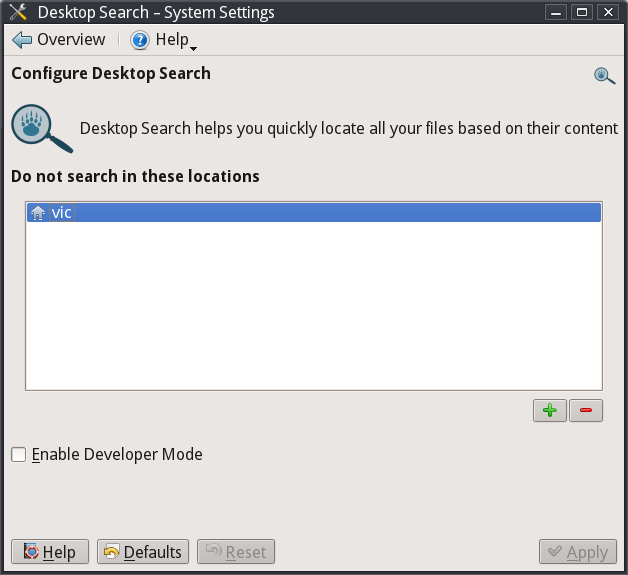
There is no explicit “Enable/Disable” button any more. We would like to promote the use of searching and feel that Baloo should never get in the users way. However, we are smart about it and IF you add your HOME directory to the list of “excluded folders”, Baloo will switch itself off since it no longer has anything to index.


enter image description hereSolution

Here is how to disable Baloo from operating. Edit the file $HOME/.kde/share/config/baloofilerc. It is enough to edit it and change the option:

Indexing-Enabled=true 

to (or add if there is not such option)
 
Indexing-Enabled=false

to disable baloo.

I know it is way too easy but it did work for me and also for the guy who posted this simple solution on this page.

Wednesday, September 24, 2014

LibreOffice Color Scheme

Quick blurb about changing color schemes in LibreOffice. I typically use Google Docs for most things but for everything else, it's either Vim or LibreOffice. I prefer dark color schemes, as pure white ones can make my eyes hurt. But I've never been successful with changing or adjusting LibreOffice colors for long or very thoroughly.

While googling for some help, I found this solution:

Tools > Options > LibreOffice > Accessibility > Automatically detect high-contrast mode of the operating system 
In LibreOffice help it says: “High contrast is an operating system setting that changes the system color scheme to improve readability.” I just had to share this since it solved my problem.

 Be sure to also check "Use automatic font color for screen display."

Saturday, July 12, 2014

Amarok FLAC Problems -- Gstreamers vs. VLC Backend

Problem

So I really like the music player Amarok. It's overall excellent, even if I don't use most of its exotic features.

The majority of my music library is in FLAC format now (and growing, since I'm converting). For at least 2 years the Gstreamers backend has performed abysmally with stop-and-go-glitches in FLAC playback. I always figured they would fix it, since this is a major format and it's a serious obvious glitch. But I'm done waiting. In Amarok, this meant if two FLAC files were in my playlist, there was a 50-75% chance it would have glitched playback.

As far as I can tell, this is NOT an Amarok bug at all. The fault lays 100% in Gstreamers. In (many?) desktop environments, the gstreamers audio backend provides support. We need to replaces this, immediately. So here's the fix.

Solution


VLC comes to rescue with an actually functioning sound backend.

1. Install the VLC backend.

In Ubuntu or Debian:
apt-get install phonon-backend-vlc
In Fedora:
yum install phonon-backend-vlc
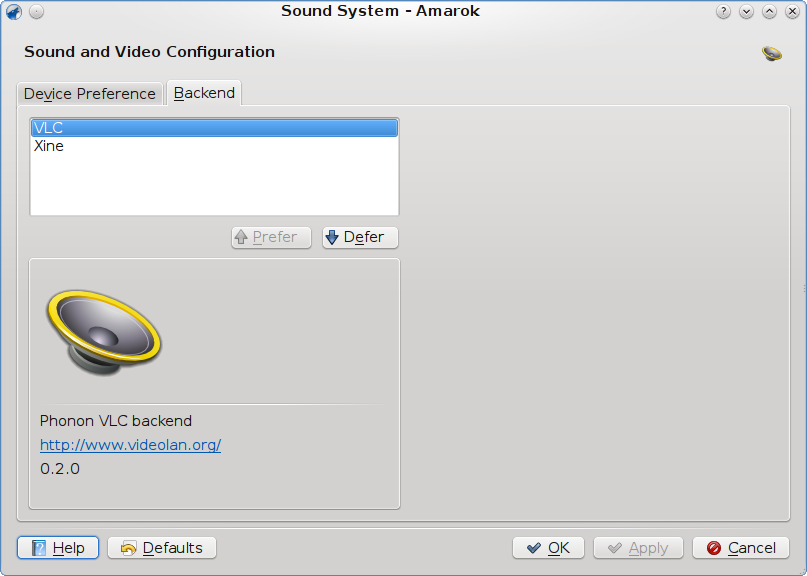
2. Change backend selection in Phonon: Go to System Settings → Multimedia → Backend
Choose VLC and click Prefer. Your screen should look like:
https://wirejungle.files.wordpress.com/2010/08/phonon-backend.png

Note: KDE used to support the Xine backend but this has since been deprecated.
3. Restart KDE, or possibly restart the entire system. I'm not sure if the PulseAudio system requires a full restart.

This will also solve problems with Volume Override that can occur under GStreamers, even if you have disabled it.

Caveat

Replay Gain doesn't work under VLC backend sadly.

Monday, June 9, 2014

How to move files for Moon+ Reader while preserving metadata (bookmarks, highlights) or recover lost metadata

Overview of Problem
This is about using the Android electronic book reader app "Moon+ Reader" to move your files around successfully without losing the metadata (bookmarks, notes, highlights, progress, etc.). This technique can also be used to recover those if you lost them.

Problem
My books were stored in "/sdcard/Books/Changeling: The Dreaming" (for this example). I needed to move these PDFs and CBZs to a different location. Using a File Manager I moved the files to "/storage/extSdCard/Changeling The Dreaming". (I had to remove the ':' in the name because of the Fat32 filesystem format on the SDCard. Curse you, Microsoft.)

Then I re-imported the books into Moon+ Reader. The app removed the previous item entries and imported the new ones, but it failed to recognize they were the same PDF and CBZ files. It did not transfer the metadata. When I say metadata I refer to the bookmarks, the highlights, the notes, the reading progress, or even the names I manually assigned to the books, etc. (Some of the PDFs needed better names.)
This bug breaks lot of features every time there is moving or renaming files/folders. I love being able to highlight my books, but Moon Reader needs to be able to handle if I move my files around.

Solution 1 -- If you have not yet lost your metadata

0) In case it needs to be said, always make a backup of your book files and your information. Moon+ Reader lets you store backups of your metadata easily through its menus. Do this before proceeding.
1) In Moon+ Reader, go to My Files. (Not "My Shelf". You need to go to My Files specifically.)
2) Using Moon+ Reader, Select and then Move any existing items.

Note that Moon+ Reader may not be able to actually move the files. The reason for this is in Android version 4.4.2, Google revoked the privilege for any apps to modify files on external SD cards. (Some limited Google specific apps can use your SD card though.)

My files were on my external SD, so Moon+ Reader could not actually move them. If your files are only on the internal SD card, it seems to be able to move them just fine.

(WARNING: Because of the warped hybrid of external SD and internal SD storage, Moon+ Reader actually deleted any duplicate files at the target move location, so watch out! Your experience may be different, but always have a backup.)
3) Remove the selected item entries from within Moon+ Reader itself.
4) Now in your file manager, move the actual file object itself to new target location.
5) Back in Moon+ Reader, now do a normal Import Books.

Your metadata should have been transferred when you re-import the new files.


Solution 2 -- If you have lost your metadata 
This is when you have moved your files, and re-imported them, and your metadata didn't show up. Here is how to fix the problem.

0) In case it needs to be said, always make a backup of your book files and your information. Moon+ Reader lets you store backups of your metadata easily through its menus. Do this before proceeding.
1) In Moon+ Reader, remove any of the new items you just imported.

In my case, I had moved files /sdcard/Books/Changeling: The Dreaming (for this example) to a different location at "/storage/extSdCard/Changeling The Dreaming". I went back through Moon+ Reader and removed the files now at "/storage/extSdCard/Changeling The Dreaming".

2) Now Moon+ Reader should have none of the botched entries stored in it.
3) In your file manager, move the files back to where they were before Moon+ Reader lost the metadata. (If your files are stored on an external SD card, remember that Android 4.4.2 doesn't allow most apps to modify external SD contents, so may need to remove the SD card and do the file management on your desktop.)
4) In Moon+ Reader, re-import the old files from their old location.
5) Now Moon+ Reader should restore all your old metadata (bookmarks, notes, highlights, etc.)

Now you are ready to migrate your files in the special way to preserve your metadata.

6) In Moon+ Reader, go to My Files. (Not "My Shelf". You need to go to My Files specifically.)
7) Using Moon+ Reader, Select and then Move any existing items. Note Moon+ Reader will not actually move the files. (WARNING: My setup with Moon+ Reader actually deleted any duplicate files at the target move location, so watch out! Your experience may be different, but always have a backup. )
8) Remove the selected item entries from within Moon+ Reader itself.
9) Now in your file manager, move the actual file object itself to new target location.
10) Back in Moon+ Reader, now do a normal Import Books.

Troubleshooting
If you get "import: 0", then you did not remove the entries before trying to import. Be sure to check if you double imported them, because they might have nasty duplicates at the new import location where you were trying that do not have the transferred meta data.

Hack Editing the Backup Files Directly
Be careful when editing the Backup files yourself. You'll probably need some really basic knowledge of how SQL commands work, but not much.

About Moon+ Reader's Backup Files
Moon+ Reader's backup files have the file extension .mrpro (on the Pro version anyway). This is actually a Zip file. If you extract it, inside is a folder called "com.flyersoft.moonreaderp". Inside that is a bunch of files. In my case, there is typically about 60 files, most of them numbered files from 1.tag to 57.tag files. The important one you want is one of the high numbers. Look at the file size also to help you. One of them is actually the SQLite3 database. Mine was about 1.1 MB, while the rest were tiny, which tipped me off it was the real contents.

SQL Editing
I used an SQL editing program to view the SQLite3 database file. If I remember, I used "Sqliteman" which was simple enough for my needs. Using some simple find and replace string commands in SQL, I edited the existing entries with my meta data (highlights, notes, bookmarks, etc) changing them from the old filepaths to point to the working ones.

Finishing -- Zipping and Re-Importing and Restoring
After editing the appropriate .tag file (which is the SQLite3 database file actually), I zipped the entire folder back up, and gave it a name with a newer date, then imported that through Moon+ Reader, restoring from there. This fixed my paths.

Though now I just prefer to root my devices which allow me to give admin privileges to certain apps to move files around.
 

Addendum: Proposed Solution
I sent an email to the developer of Moon+ Reader about a proposed solution to fix this. I suggested he use file checksums (such as sha128 or md5sum) on each item that is imported. This way he could match files that move or are duplicates.
Moon+ Reader uses SQLite version 3 underneath and all the highlighting, bookmarks, notes, etc. are stored in these. You can even gain direct access to these by having the program use the "Backup" and "Restore" features. So if you want you can edit the SQLite database manually. I have actually hacked my Moon+ Reader SQLite files quite a bit at this point to clean up some bad stored book-entries.
While the developer did kindly respond, he never said that he would do this or not. I hope he does. But he did give me a hint on how to what had happened.